How to Share with your “TAPPY TO MEET YOU” NFC Digital Business Card
1. Check the Recipient’s Phone
• Ensure the person’s smartphone has NFC enabled. Most Android phones require toggling NFC on (Settings → Connected devices → NFC). Most iPhones (iPhone 7+ with iOS 11+) support NFC by default. Please note that older phone models are not NFC ready. Please use the QR code printed on your card.
2. Position the Tap Correctly – Tap the PVC area which is the back side of the printed card.
• iPhone users: Tap your NFC card at the upper back or front of their phone.
• Android users: Tap near the center back of their phone.
• NOTE: Thick phone cases may interfere with the NFC signal.
3. Keep Steady During Tap
• Hold the card close—don’t pull away—until the connection registers. It may require a brief steady hold rather than a quick swipe. Tap the notification that will show on the phone screen. They may be required to unlock the phone.
4. Unlock the Phone
• The recipient’s phone may need to be unlocked for the NFC link or digital profile to launch immediately
5. View and Save Info
• Once tapped, the phone will automatically open the linked digital business card page (a web browser), allowing the recipient to view your contact details, social links, or download a vCard.
6. Use QR Code as a Backup
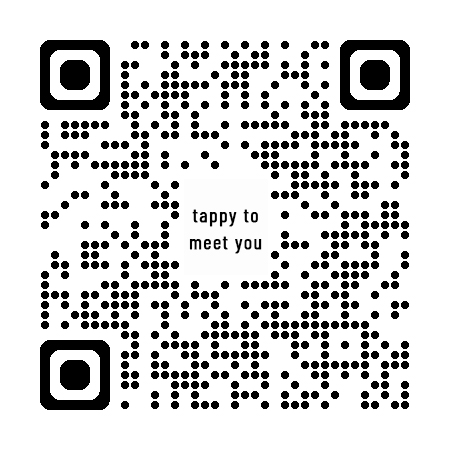
• For phones without NFC or if NFC fails, a printed QR code on your card allows recipients to scan and still access your information.
📘 NFC Card Information Use Disclaimer
By tapping this NFC card, you agree to share the information encoded within it (such as contact details, website links, or business profiles) with your device. No personal data is collected, stored, or transmitted from your device without your explicit consent.
This NFC card is programmed solely for informational and networking purposes. It does not access or interact with any other data on your device.
Enjoy! If you have any questions, please contact us.
To update your contact information and social links, please submit it on this form
or scan the QR code.